
Handling the broadcast a/v object
Before you read
| IMPORTANT: It is highly recommended that prior to reading this article one consults the ETSI TS 102 796 V1.1.1 standard document, especially the chapters considering the video/broadcast object (e.g. 10.1.2 Interaction with the video/broadcast object and A.2.4 Extensions to the video/broadcast object). |
Introduction
This example will build up on our Hello world example and will demonstrate interaction with broadcast video and audio using the video/broadcast object. The following figure shows the states that a video/broadcast object may be in. Dashed lines indicate automatic transitions between states. The video/broadcast object will be in the unrealized state when it is instantiated.
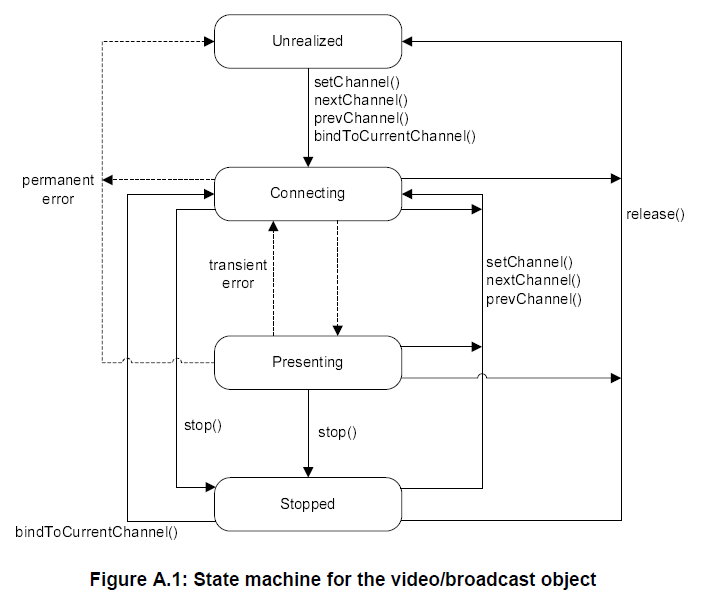
Applications can use the playState property of the video/broadcast object to read its current state. Possible playState values are:
| Value | Meaning |
| 0 | unrealized; the application has not made a request to start presenting a channel or has stopped presenting a channel and released any resources. The content of the video/broadcast object is transparent. |
| 1 | connecting; the terminal is connecting to the media source in order to begin playback. Objects in this state may be buffering data in order to start playback. Control of media presentation is under control of the application. The content of the video/broadcast object is transparent. |
| 2 | presenting; media is currently being presented to the user. The object is in this state regardless of whether the media is playing at normal speed, paused, or playing in a trick mode. Control of media presentation is under control of the application. The video/broadcast object contains the video being presented. |
| 3 | stopped; the terminal is not presenting media, either inside the video/broadcast object or in the logical video plane. The logical video plane is disabled. Control of media presentation is under control of the application. The application is still granted access to broadcast resources. |
Example application
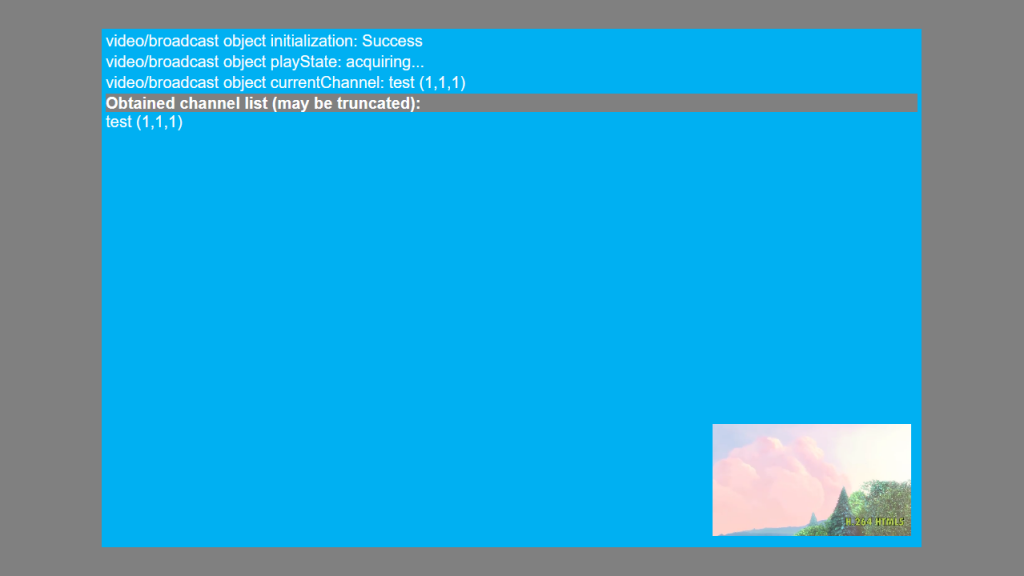
The example application will:
- Initialize the video/broadcast object so it displays the current channel in „windowed“ (not full screen) mode in bottom right part of the screen;
- Attach an event listener to video/broadcast object which will display current state of the object (playState variable)
- Show info on current channel being displayed on terminal
- Show info on channels available on terminal
Observe the application scene post startup (FireHbbTV emulator):
Full source code is available here: https://github.com/HbbTV-Association/Tutorials/tree/main/broadcast-object
The code consists of:
- broadcast-object.html HTML document holding the application scene
- broadcast-object.css CSS document holding the application scene styling
- broadcast-object.js JavaScript file holding the application logic
broadcast-object.html
We start with:
as is required by chapter A.2.6.2 MIME type and DOCTYPE of the ETSI TS 102 796 V1.1.1 standard.
In head section we load our CSS and JS:
<head>
    <title>video/broadcast object demo app</title>
    <meta http-equiv="Content-Type" content="application/vnd.hbbtv.xhtml+xml; utf-8" />
    <link rel="stylesheet" href="broadcast-object.css" />
    <script type="text/javascript" src="broadcast-object.js"></script>
</head>
In body tag we set our onload function:
<body onload="start();">And we follow with our embedded objects:
<div>
  <object type="application/oipfApplicationManager" id="applicationManager"></object>
  <!-- this is our video/broadcast object -->
  <object type="video/broadcast" id="broadcastVideo"></object>
</div>
The application/oipfApplicationManager embedded object is used within our application logic to acquire the Application object, as set by standard and explained in Hello world example. The video/broadcast is our broadcast a/v object that we will use to control the display of broadcast video.
We follow with our application scene, contained in safe area as recommended by the standard:
- Obtained channel list (may be truncated):
The scene contains three status fields:
- Initialization status (shows status of initialization)
- video/broadcast object playState (updated by PlayStateChange event handler)
- Current channel info (shows info on channel currently displayed within video/broadcast object)
which are followed by a list of channels available to the terminal (which is acquired using functions / properties available with the video/broadcast object).
broadcast-object.css
Document defines style for body:
/* general settings related to Hbb */
body
{
 /* grey background */
 background-color: #808080;
 /* we explicitly set the size of the body element */
 width: 1280px;
 height: 720px;
 overflow: hidden;
}
Style for the embedded objects:
/** application/oipfApplicationManager embedded object style  */
object#applicationManager
{
 position: absolute;
 left: 0px;
 top: 0px;
 width: 0px;
 height: 0px;
}
/** video/broadcast embedded object style  */
object#broadcastVideo
{
 position: absolute;
 left: 890px;
 top: 530px;
 width: 250px;
 height: 140px;
 z-index: 10;
}
The video/broadcast object is positioned to the lower-right part of the screen, at coordinates 890, 530 with set width to 250px and height to 140px. When setting width & height please observe limitations set by ETSI TS 102 796 V1.1.1 standard, Table 14: Minimum terminal capabilities. Z index is set to make sure that the video/broadcast is on top OSD graphics. The HbbTV graphics planes model is described in the chapter 10.1.1 Logical plane model of the standard.
Style for safe area:
/** safe area as recommended by standard */ div.safe_area { position: absolute; left: 128px; top: 36px; width: 1024px; height: 648px; /** set background color */ background-color: #00b0f2; }
Then we finish by setting style for status fields and channel list:
/* set status text style */
div.status_text
{
 padding-left: 5px;
 padding-top: 3px;
 color: white;
 font-family: sans-serif;
 font-size: 20px;
}
/* set channel list style */
ul.channel_list_general
{
 padding-left: 5px;
 padding-right: 5px;
 padding-top: 3px;
 color: white;
 font-family: sans-serif;
 font-size: 20px;
 list-style-type: none;
}
li.channel_list_header
{
 font-weight: bold;
 background: #808080;
}
broadcast-object.js
Application logic is implemented in broadcast-object.js:
var broadcastObject = {
 videoObj: null,
 currentLiveChannel: null,
 initialize: function() {
 broadcastObject.videoObj = document.getElementById('broadcastVideo');
 broadcastObject.videoObj.addEventListener('PlayStateChange', broadcastObject.playStateChangeEventHandler);
 try {
 broadcastObject.videoObj.bindToCurrentChannel();
 broadcastObject.videoObj.setFullScreen(false);
 broadcastObject.currentLiveChannel = broadcastObject.videoObj.currentChannel;
 return true;
 } catch (error) {
 broadcastObject.currentLiveChannel = null;
 return false;
 }
 },
We define a broadcastObject which shall be used for all things regarding broadcast video and audio and the initialization function. The initialization function retrieves the video/broadcast object using DOM and adds the PlayStateChange event listener. Then it calls bindToCurrentChannel() as defined by the state machine described in the beginning of this article followed by a call to setFullScreen(false) function which should put the broadcast a/v in “windowed” mode. The video/broadcast object method void setFullScreen( Boolean fullscreen ) sets the rendering of the video content to full-screen (fullscreen = true) or windowed (fullscreen = false) mode. If a change in mode is indicated, it results in a change of the value of the video/broadcast object property fullScreen. Changing the mode does not affect the z-index of the object.
Finally, the initialization function obtains the currentChannel property and stores it to broadcastObject.currentLiveChannel.
After the initialization function other utility functions are defined:
 getChannelList: function() {
 try {
 return broadcastObject.videoObj.getChannelConfig().channelList;
 } catch (error) {
 return null;
 }
 },
 getChannelInfo: function(ch) {
 var channelInfo = '' + ch.name +  '(' + ch.onid + ',' + ch.tsid + ',' + ch.sid + ')';
 return channelInfo;
 },
 playStateChangeEventHandler: function () {
 var playStateField = document.getElementById('playState_field');
 switch (broadcastObject.videoObj.playState) {
 case 0:   // unrealized
 playStateField.innerHTML = 'Unrealized';
 break;
 case 1:   // connecting
 playStateField.innerHTML = 'Connecting';
 break;
 case 2:   // presenting
 playStateField.innerHTML = 'Presenting';
 break;
 case 3:   // stopped
 playStateField.innerHTML = 'Stopped';
 break;
 default:
 playStateField.innerHTML = 'Error';
 }
 }
};
The getChannelList() function retrieves the channelList property which contains a list of channels available to the terminal. The getChannelInfo(ch) function returns a text representation of a Channel object containing channel name and identifiers for that particular broadcast service within the broadcast network where it’s carried. Finally, the playStateChangeEventHandler() function implements the event listener for the PlayStateChange event.
The remainder of our code is the app entry function start(). It starts with Application object acquisition:
// app entry function
function start()
{
 try {
 // attempt to acquire the Application object
 var appManager = document.getElementById('applicationManager');
 var appObject = appManager.getOwnerApplication(document);
 // check if Application object was a success
 if (appObject === null) {
 // error acquiring the Application object!
 }
Once the Application object is acquired we initialize our broadcastObject and display corresponding initialization status and current channel information:
 else {
 var i, li, availableChannels;
 // we have the Application object, and we proceed with broadcast_object initialization
 if (broadcastObject.initialize()) {
 // initialization OK, so display message and current channel
 document.getElementById('inititalization_field').innerHTML = 'Success';
 if (broadcastObject.currentLiveChannel !== null) {
 document.getElementById('currentChannel_field').innerHTML = broadcastObject.getChannelInfo(broadcastObject.currentLiveChannel);
 }
 else {
 document.getElementById('currentChannel_field').innerHTML = 'null';
 }
Then we retrieve and display the list of available channels:
 // get available channels
 availableChannels = broadcastObject.getChannelList();
 // append channels to list
 try {
 if (availableChannels.length > 0) {
 for (i = 0; i < availableChannels.length; i++) {
 li = document.createElement('li');
 li.innerHTML = broadcastObject.getChannelInfo(availableChannels.item(i));
 document.getElementById('channelList_field').appendChild(li);
 }
 }
 else {
 throw 'No channels in list';
 }
 }
 catch (channelError) {
 // channel error occurred
 li = document.createElement('li');
 li.innerHTML = 'channel_error: ' + channelError;
 document.getElementById('channelList_field').appendChild(li);
 }
 }
We finish with the remainder of our app entry function:
 else {
 // initialization not OK, so show the message
 document.getElementById('inititalization_field').innerHTML = 'Failure';
 }
 // show our app
 appObject.show();
 }
 }
 catch (e) {
 // this is not an HbbTV client, catch the error.
 }
}