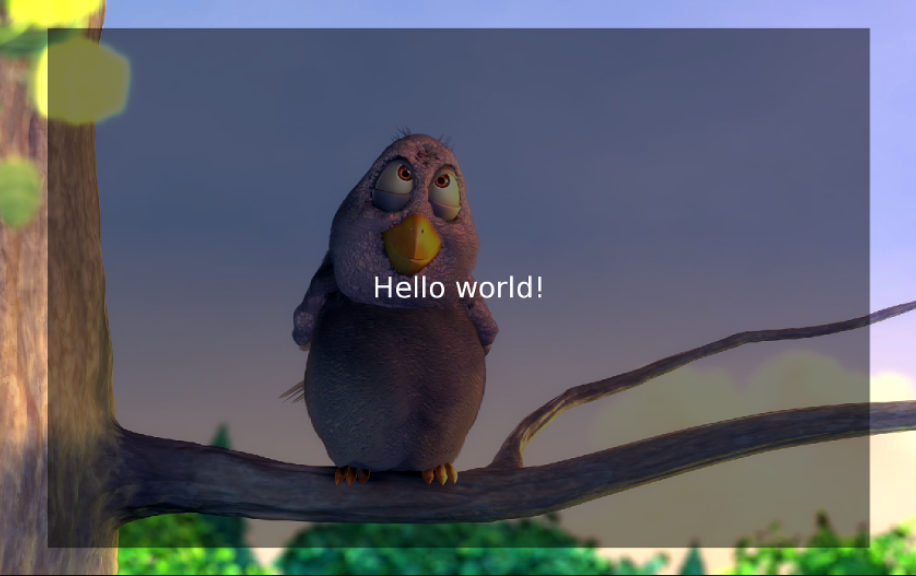
Hello World application
A minimal HbbTV application that aims to be compatible across a widest range of terminals that displays a Hello world! message on screen.
This application does not feature remote control interaction (e.g. show / hide itself on red button press) or other features, it simply showcases a minimum HbbTV app skeleton. A classic “Hello world!” message is shown on screen immediately without the need for any user action. The application consists of:
- hello-world.html HTML document holding the application scene
- hello-world.css CSS document holding the application scene styling
- hello-world.js JavaScript file holding the application logic
Full source code is available here: https://github.com/HbbTV-Association/Tutorials/tree/main/hello-world
Let’s dive into hello-world.html. We start with:
as is required by chapter A.2.6.2 MIME type and DOCTYPE of the ETSI TS 102 796 V1.1.1 standard.
This identifies the document as being backwards compatible to the HbbTV ETSI 1.1.1 standard. This DOCTYPE is required as the original versions of HbbTV are based on XHTML which has a number of declaration requirements.
The head section is:
<head>
    <title>Hello world app</title>
    <meta http-equiv="Content-Type" content="application/vnd.hbbtv.xhtml+xml; utf-8" />
    <link rel="stylesheet" href="hello-world.css" />
    <script type="text/javascript" src="hello-world.js"></script>
</head>
The Content-Type is also set as defined in the ETSI 1.1.1 standard to “application/vnd.hbbtv.xml+xhtml; utf-8”. Once again this is an XHTML requirement, which we include to ensure backward compatibility.
As with standard HTML applications, within <head> we include our CSS and JS files.
The body section is:
<body onload="sayHello();">
  <div>
    <object type="application/oipfApplicationManager" id="applicationManager">
    </object>
  </div>
  <!-- we shall define a safe area within the body -->
  <div class="safe_area" id="app_area">
    <!-- here we show the message -->
    <div class="center">
      <p class="hello_style">
        Hello world!
      </p>
    </div>
  </div>
</body>
</html>
The onload event calls our application entry function sayHello() (which is declared in the hello-world.js javascript file) immediately after the page has loaded.
The <body> of a HbbTV application should always include the application/oipfApplicationManager embedded object which we will use within our application logic to acquire the Application object.
The oipfApplicationManager is an interface designed to provide a standardized way for applications to be managed and controlled within a TV platform. The oipfApplicationManager provides methods to:
- Handle application events and state changes
- Launch and terminate applications
- Manage the lifecycle of applications (e.g. start, stop, pause, resume)
- Retrieve information about running applications
Each application has an associated DOM Window object by default. In HbbTV implementations, this Window object is initially marked hidden to avoid screen flicker during application start-up. Once loaded, the application typically calls the show() method of the Application object.
It is good practice for application scene to use a container <div>, which in our example is <div class="safe_area" id="app_area"> to define a graphic safe area for content authoring as recommended in chapter 10.1.3 Graphic safe area (informative) of the standard. We put our Hello world! Message in the center of the graphics safe area.
Now, let’s start inspecting the hello-world.css document.
/* general settings related to Hbb */
body
{
    /* transparent background */
    background-color: transparent;
    /* we explicitly set the size of the body element */
    width: 1280px;
    height: 720px;
    overflow: hidden;
}
We set the body to be transparent, so we see the live broadcast going on in the background. We also set the body size as defined in standard to provide the greatest backwards compatibility.
We then set the style for the application/oipfApplicationManager embedded object:
/* application/oipfApplicationManager embedded object style */ object#applicationManager { position: absolute; left: 0px; top: 0px; width: 0px; height: 0px; }
We choose to define the graphic safe area for content authoring as recommended in chapter 10.1.3 Graphic safe area (informative) of the standard. The background colour is set to better distinguish the Hello world! message on screen:
/* safe area as recommended by standard */
div.safe_area
{
    position: absolute;
    left: 128px; top: 36px; width: 1024px; height: 648px;
    /** set background color and alpha */
    background-color: rgba(0, 0, 0, .5);
}
Finally, we set the Hello world! message style:
/* set text style */ div.center { padding: 270px 0; } p.hello_style { color: white; font-family: sans-serif; font-size: 36px; text-align: center; }
Observe that the font-family set is a font which is supported by the standard.
Finally, let us dive into application logic:
// app entry function
function sayHello()
{
    try {
        // attempt to acquire the Application object
        var appManager = document.getElementById('applicationManager');
        var appObject = appManager.getOwnerApplication(document);
        // check if Application object was a success
        if (appObject === null) {
            // error acquiring the Application object!
        }
        else {
            // we have the Application object, and we can show our app
            appObject.show();
        }
    }
    catch (e) {
        // this is not an HbbTV client, catch the error.
    }
}
We only have one function defined, which is our application entry function sayHello(). It attempts to acquire the Application object, which should always be possible on a HbbTV terminal. The Application object is acquired using the getOwnerApplication() method of the application/oipfApplicationManager embedded object. Once the Application object is acquired its show() method can be called in order to make our application visible on screen.