
Setting up a modulator
To test a HbbTV application on most television you will require a modulator, unless the television provides a back door to launch applications, such as a USB key.
A modulator is required to provide broadcast signalling that will provide the URL for the application you wish to test. This is required for testing, even if the application will not ultimately be launched from a broadcast signal.
| The following is taken from a blog article on setting up a DekTec modulator, its inclusion in this developer guide should not be taken as an endorsement of DekTec by the HbbTV Association. Other modulators are available. |
Setting up a DekTec modulator
DekTec are one of the most popular modulators for HbbTV developers. Though others are available.
DekTec provide both PCI express cards and USB devices. As most developer work on a laptop the USB devices are more widely used. DekTec only directly support Windows systems, though the USB devices have been made to work with some Linux systems.
DekTec provide USB modulators that will generate terrestrial, cable and satellite signals (e.g. DTU-315). Most European TVs will have a terrestrial and cable tuner, and some will also have a satellite tuner. Some older DekTec USB modulators and some of their PCIe modulators support either terrestrial and cable tuners or satellite tuners. Terrestrial and cable use the same frequencies (VHF and UHF) and similar modulation, whereas satellite uses higher frequencies and a different modulation.
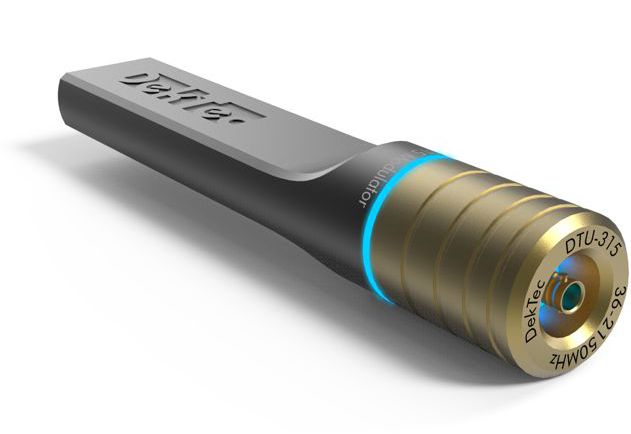
DekTec DTU-315
This tutorial uses a DTU-215 which is a VHF/UHF modulator. This has been discontinued but has the same set-up and uses the same software as the DTU-315.

DekTec DTU-215
The latest DekTec USB modulators come with a micro BNC connector and will require a cable and adaptor to connect to a television.
The older DekTec USB modulators came with a F-connector and may require an adaptor to connect to some televisions.
The software for managing and controlling a DekTek modulator is StreamXpress. StreamXpress can be downloaded as an installation package from the DekTek website. The installation is simple, with installation instruction if needed located here.
Once installed and started StreamXpress will automatically detect any modulators connected to your PC. If there are multiple modulators connected, they can be selected in the top right-hand area of the screen.
The transport stream file to be played out is open from the file menu.
StreamXpress will take most of the parameters require from the transport stream. You will want to check that modulator parameters are appropriate for your TV.
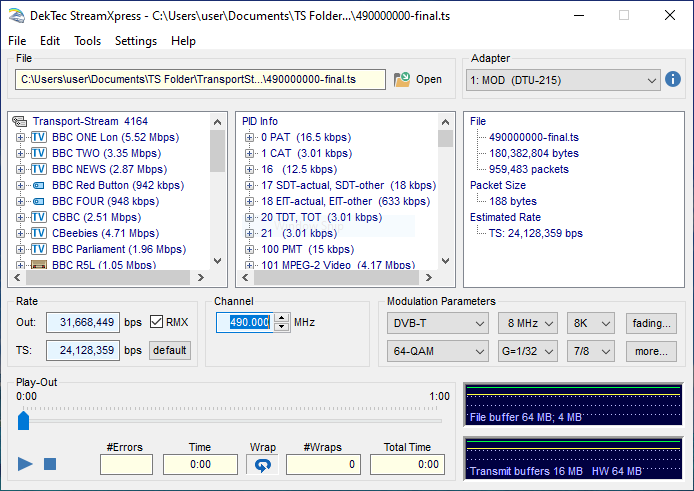
StreamXpress user interface
For my UK terrestrial TV I use 490.000 MHz, with DVB-T and 64-QAM.
You will need to press play to start the transport stream playout. Once the playout has started you will need to tune your television to receive the signal. In most cases an autotune will find the signal.
In most cases you will be using a short transport stream and you will want the StreamXpress to loop (AKA wrap) the transport stream to give you continuous playout.
An important element for your testing will be to ensure the time is correct. Most television take their time from the transport stream they are tuned to. This is carried in the TDT and TOT tables, if these are left unaltered the time your television will be stuck on the time of the original transport stream. The DekTec modulator will helpfully updated these tables to the current time. Under the Tools menu there is a menu item to ‘Loop and TDT/TOT Adaptation…’. In this screen you will in most cases want the TDT/TOT to be changed to current UTC date/time.
It is recommended for most testing to set ‘Loop Adaptation’ on for ‘Continuity Counter’, ‘PCR, DTS/PTS’ and ‘TDT/TOT’.
StreamXpress allows you to save settings, it is recommended to save your settings when you have a working configuration before experimenting further.
The user manual for StreamXpress can be found here.